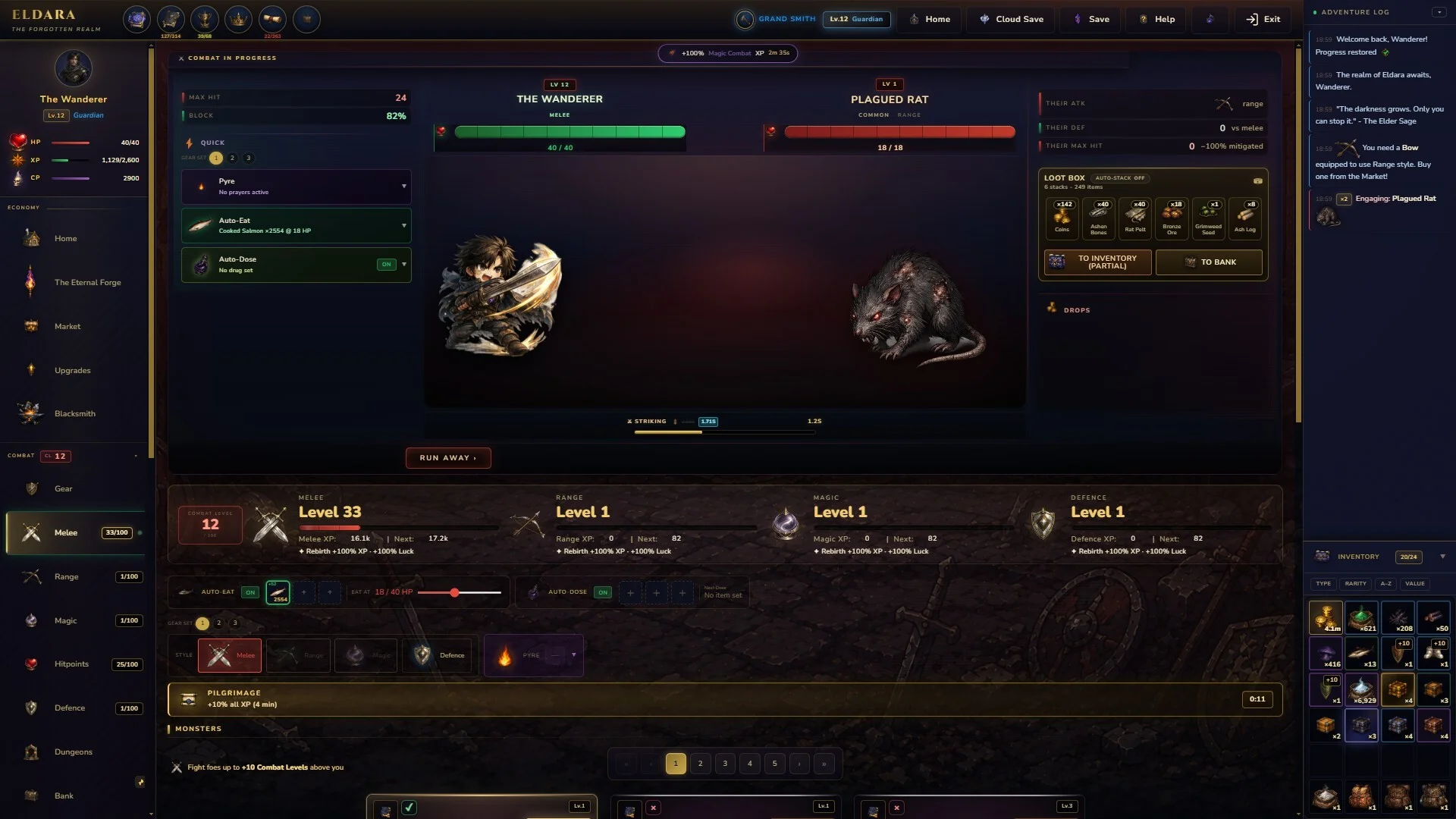
- Eldara pc is available through Steam as a single-player dark fantasy idle RPG.
- Minimum setup requires Windows 10 64-bit, 2 GB RAM, DirectX 11, and 500 MB storage.
- Recommended setup uses Windows 10 or 11, 4 GB RAM, DirectX 12, and 1 GB storage.
- Core progression combines 17 skills, crafting, monster hunting, pets, and offline progress.
- Steam Deck status is listed as Playable, while English supports interface and subtitles.
Eldara pc Availability and Core Features
For players searching for Eldara pc, the game is a Windows-focused Steam release with a dark fantasy idle RPG structure. Eldara launched into Version 1.0 on September 2, 2026, after entering Early Access on June 15, 2026. It is designed around steady progression: you select an activity, build skills, collect resources, and return later to continue developing your character.
The game supports single-player play, Steam Achievements, Steam Cloud, Family Sharing, and Steam Deck compatibility listed as Playable. Its design emphasizes flexible sessions rather than fast reactions, making it suitable for players who prefer a persistent progression loop that can continue while they are away.
Treat Eldara as a progression network rather than a collection of isolated skills. Improving one activity can support gathering, crafting, combat, and future upgrades elsewhere.
Skill Training
Build progress across 17 skills, including melee combat, magic, fishing, mining, fletching, cremation, and herb cultivation.
Monster Hunting
Explore ruined kingdoms and forgotten areas, defeat monsters, and gather bones, hides, and other crafting materials.
Pet Bonuses
Collect 17 unique pets tied to skill mastery. Each companion provides permanent bonuses in its associated domain.
Offline Progress
Set an activity, leave the game, and return later to continue your selected progression path at your own pace.
The available features make Eldara a practical choice for players who want a low-pressure fantasy RPG on PC. Adjustable difficulty, save-anytime functionality, custom volume controls, and play without quick-time events are also listed among its accessibility options.
The official Eldara Steam page is the best place to verify the current release information, supported features, and store availability.
| Feature | Eldara PC Details | Best Use |
|---|---|---|
| Game type | Dark fantasy idle RPG | Long-term skill progression |
| Player mode | Single-player | Personal, self-paced sessions |
| Skills | 17 interconnected skills | Building a broad account |
| Pets | 17 collectible companions | Permanent skill-related bonuses |
| Achievements | 68 Steam Achievements | Completion goals |
| Cloud support | Steam Cloud | Continuing across supported devices |
| Handheld support | Steam Deck: Playable | Portable idle progression |
Eldara PC System Requirements
Eldara has modest storage and memory requirements, but both the minimum and recommended specifications require a 64-bit processor and operating system. The minimum configuration lists Windows 10 64-bit, an Intel Core i3 or comparable AMD processor released within the last 10 years, 2 GB of RAM, DirectX 11, and 500 MB of available storage.
The recommended configuration raises the target to Windows 10 or Windows 11 64-bit, an Intel Core i5 or AMD Ryzen 5 processor released within the last five years, 4 GB of RAM, DirectX 12, and 1 GB of storage. A dedicated graphics card or modern integrated GPU is recommended for this setup.
A 64-bit operating system is required. Confirm that your Windows installation is 64-bit before troubleshooting graphics, launch, or compatibility issues.
| Component | Minimum Requirement | Recommended Requirement |
|---|---|---|
| Operating system | Windows 10, 64-bit | Windows 10 or 11, 64-bit |
| Processor | Intel Core i3 or AMD equivalent | Intel Core i5 or AMD Ryzen 5 |
| Processor age guidance | Released within the last 10 years | Released within the last 5 years |
| Memory | 2 GB RAM | 4 GB RAM |
| Graphics API | DirectX 11 | DirectX 12 |
| Graphics hardware | Not specified | Dedicated GPU or modern integrated graphics |
| Storage | 500 MB available | 1 GB available |
| Sound | DirectSound-compatible card | DirectSound-compatible card |
Minimum Versus Recommended Setup
The minimum specification is appropriate for a basic Windows PC that meets the listed operating system and processor requirements. The recommended specification provides more headroom for background applications, modern Windows environments, and graphics hardware compatibility.
Because the storage footprint is small, disk capacity is unlikely to be the main barrier. Focus instead on the 64-bit operating system, available RAM, processor age, and DirectX support. Keeping Windows and graphics drivers updated can also reduce avoidable launch problems.
| PC Profile | Suitable For | Preparation Priority |
|---|---|---|
| Basic Windows laptop | Idle progression and standard play | Confirm 64-bit Windows and 2 GB RAM |
| Office desktop with modern CPU | Casual single-player sessions | Close unnecessary background applications |
| Gaming desktop | Higher system headroom | Use recommended DirectX and graphics support |
| Modern integrated-graphics PC | Standard play on supported hardware | Verify current drivers and DirectX version |
Eldara PC Setup Guide
A clean setup helps you begin training skills without wasting early progression time. The most important decision is not a traditional class selection; it is choosing which activity should receive your first sustained attention. Eldara connects combat, gathering, crafting, and support skills, so an efficient opening alternates between progression and resource preparation.
Follow these steps when setting up your first Eldara session on PC.
Confirm Your PC Configuration
Check for Windows 10 or 11 in 64-bit mode, confirm available storage, and make sure your processor and memory are close to the listed requirements. If your system is near minimum specifications, close demanding background programs before launching.
Start With One Primary Activity
Select a skill that matches your immediate goal. Melee or magic supports combat progression, while mining, fishing, herb cultivation, or fletching can establish useful resource routines.
Build a Supporting Skill
Pair your main activity with a connected production or gathering skill. For example, combat can supply monster materials, while mining and crafting help turn resources into equipment or useful items.
Review Progress Before Switching
Check completed milestones, collected materials, equipment upgrades, and pet progress before changing activities. This keeps your development organized and prevents resources from sitting unused.
The strongest routine is usually a repeating loop: train a skill, gather materials, craft an upgrade, defeat stronger enemies, and reinvest the new drops.
Recommended Early Session Structure
Your first sessions should establish a reliable rhythm instead of trying to advance every skill at once. Choose one main objective, then use the available materials to support it. If an upgrade requires a resource you do not have, switch briefly to the relevant gathering skill rather than abandoning the broader progression plan.
| Goal | Primary Focus | Useful Support |
|---|---|---|
| Improve combat | Melee or Magic | Hunting, crafting, equipment production |
| Prepare equipment | Mining or gathering | Smithy, alchemy bench, fletching table |
| Build ranged options | Fletching | Gathering materials and monster drops |
| Increase long-term bonuses | Skill mastery | Unlocking the related pet |
| Explore the world | Combat and travel | Resource preparation and flexible difficulty |
Crafting and Resource Priorities
Eldara includes hundreds of items, recipes, and crafting paths. Not every available recipe needs immediate attention. Prioritize upgrades that improve your main activity or help you reach the next meaningful milestone. Monster drops such as bones, hides, and rare materials can support several progression routes, so keep a reserve before spending everything on a single upgrade.
PC Performance and Accessibility Tips
Eldara is built for players who want to progress at their own pace. Its accessibility settings include adjustable difficulty, save-anytime functionality, custom volume controls, play without quick-time events, and a pace that does not depend on rapid input. These options make it easier to adapt the experience to your preferred session length and comfort level.
For a smooth Eldara pc setup, begin with the default configuration and change only the settings that solve a specific need. If performance is inconsistent, close background applications first, then verify that your graphics drivers and DirectX installation are current.
Use short active sessions to choose activities and manage upgrades, then let offline progress handle longer gaps between play sessions.
| Setting or Feature | Available Information | Practical Recommendation |
|---|---|---|
| Difficulty | Adjustable difficulty listed | Select a comfortable level and adjust when progression feels too slow or demanding |
| Saving | Save anytime listed | Save before changing major activities or testing a new progression route |
| Audio | Custom volume controls | Set music and effects independently for longer sessions |
| Input | No quick-time events required | Suitable for relaxed play and slower input preferences |
| Language | English interface and subtitles | Confirm language settings before beginning a long session |
| Cloud | Steam Cloud supported | Keep synchronization enabled when moving between supported devices |
Steam Deck Considerations
Steam lists Eldara as Playable on Steam Deck. This supports the game’s portable use case, especially because its idle structure allows short check-in sessions. However, a “Playable” rating is not the same as a guarantee that every player will have an identical experience. Keep SteamOS updated and verify controls after major platform or game updates.
If you mainly play on a Windows PC, Steam Cloud can help maintain continuity across supported devices. Before switching hardware, allow the current session to synchronize and confirm that the latest save is available.
PC Setup Checklist:
- Confirm Windows 10 or 11 is installed in 64-bit mode
- Check at least 500 MB of available storage
- Update graphics drivers and DirectX support
- Choose a primary skill and one supporting activity
- Enable Steam Cloud when using multiple supported devices
Eldara PC Progression Goals and FAQ
Eldara’s long-term structure gives you several ways to measure progress. You can focus on mastering the 17 skills, collecting all 17 pets, completing crafting paths, defeating increasingly difficult monsters, or working toward the 68 Steam Achievements. A balanced account benefits from exploring each category, while a focused account can specialize in the skills that best match your preferred playstyle.
Set one short-term target and one long-term target. For example, pursue a crafting upgrade now while working toward a skill milestone or pet unlock over time.
| Milestone Type | What to Track | Why It Matters |
|---|---|---|
| Skill mastery | Levels, passives, and milestones | Unlocks broader progression options |
| Pet collection | Skill-linked companions | Adds permanent bonuses to related domains |
| Crafting | Recipes, materials, and upgrades | Converts resources into stronger progression tools |
| Combat | Monsters, drops, and equipment | Opens access to rarer materials and challenges |
| Achievements | 68 Steam Achievements | Provides structured completion objectives |
Common Questions
Q: Is Eldara available on PC?
Yes. Eldara is listed on Steam as a single-player dark fantasy idle RPG for Windows. The listed operating systems are Windows 10 and Windows 11 in 64-bit form.
Q: What are the minimum Eldara PC requirements?
The minimum specification lists Windows 10 64-bit, an Intel Core i3 or AMD equivalent processor released within the last 10 years, 2 GB RAM, DirectX 11, 500 MB storage, and a DirectSound-compatible sound card.
Q: Does Eldara support offline progress?
Yes. Eldara is designed around offline progress. Players can set an activity, leave the game, and return later with progression continuing according to the selected activity.
Q: Can Eldara be played on Steam Deck?
Steam lists Eldara as Playable on Steam Deck. Keep the device and game updated, and confirm controls and synchronization when moving between PC and handheld play.
For most new players, the best starting plan is simple: verify the PC requirements, select one primary skill, support it with gathering or crafting, and review progress at regular intervals. Eldara rewards consistent planning more than rushed decision-making, so build a sustainable routine and expand into the wider realm as your account develops.